

On this page
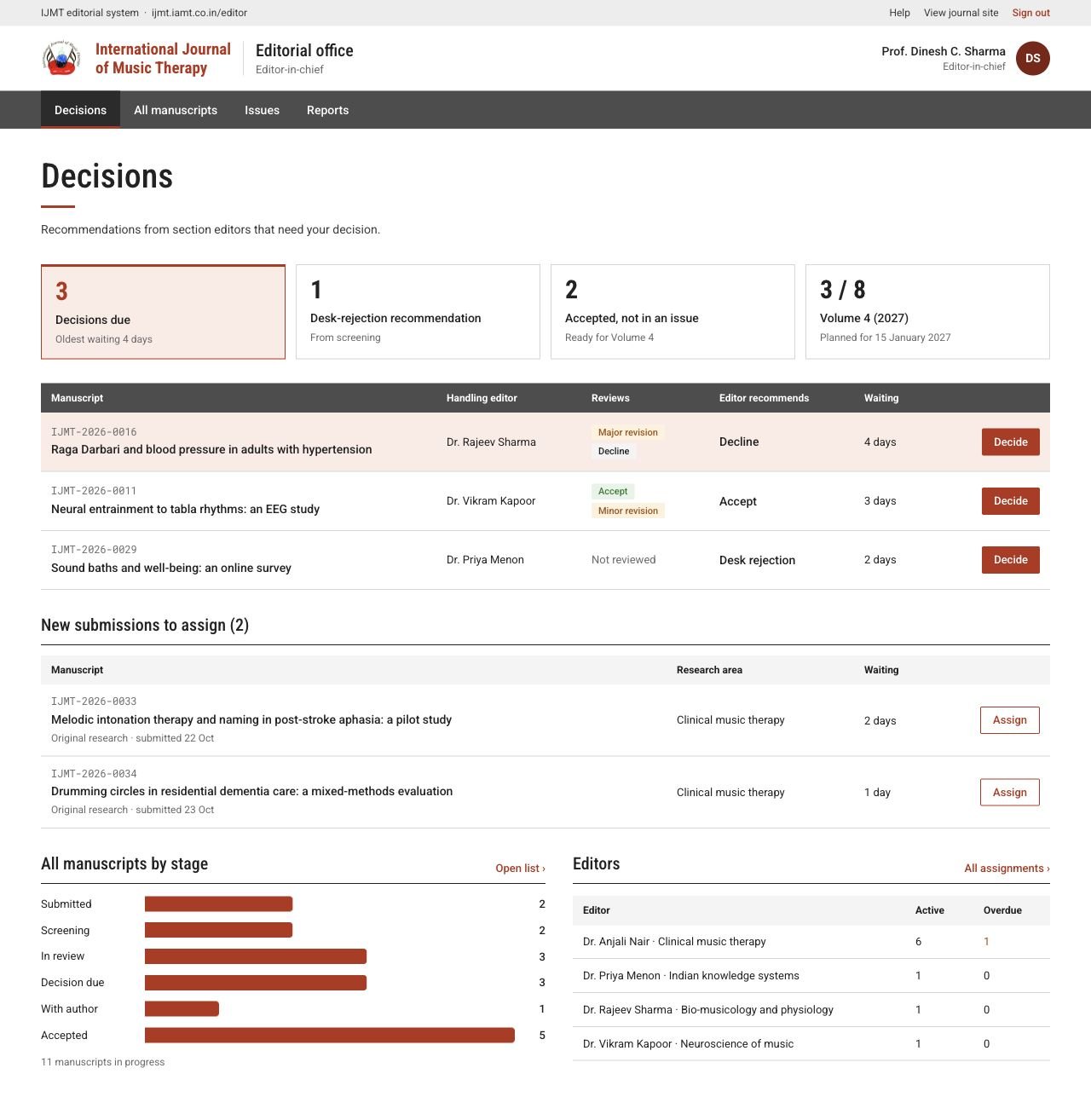
Assign new submissions
Decisions shows two lists: papers waiting for your decision, and new submissions to assign. Choose Assign, pick an editor (their subject area and current workload are shown) and confirm. The paper moves to that editor’s queue. You can reassign from the paper’s page.
 View full page
Make a decision
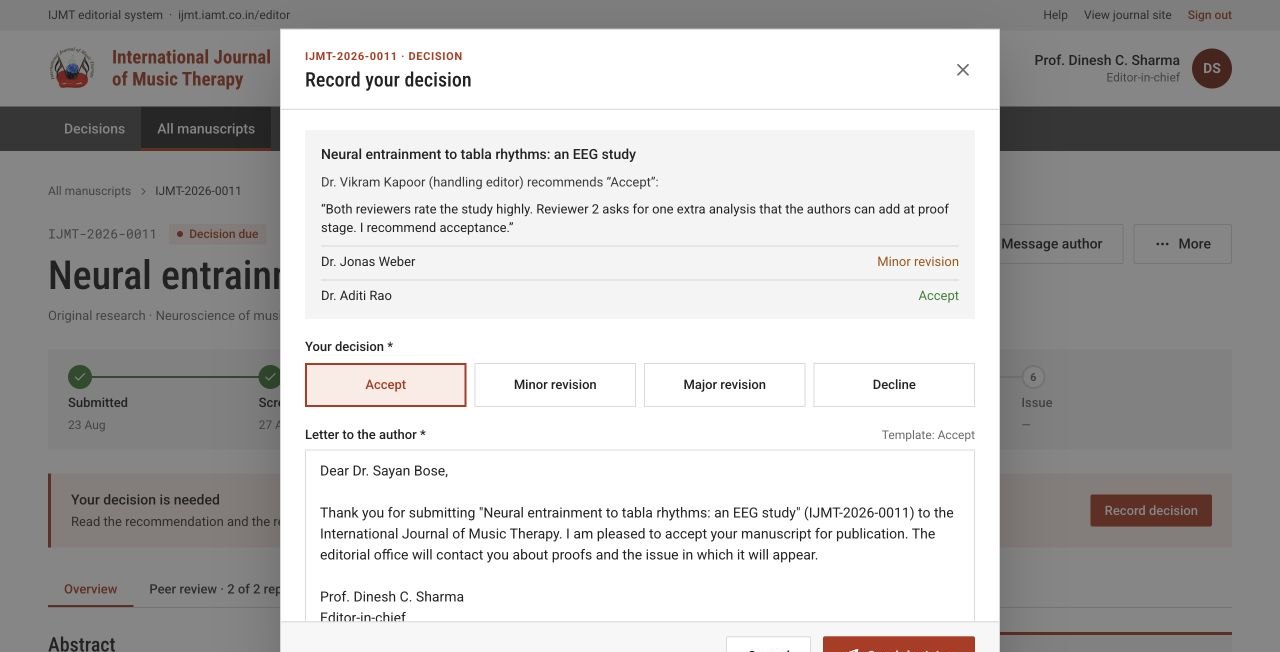
- 1Choose Decide. Read the reports, the handling editor’s recommendation, earlier rounds and the manuscript.
- 2Select Accept, Minor revision, Major revision or Decline.
- 3Read and edit the Letter to the author. Set a revision deadline when you ask for changes.
- 4Choose which reviewer comments to send to the author, and check they reveal no reviewer identity.
- 5Choose Send decision, then check the new status and letter on the paper’s page.
 Enlarge
Build an issue
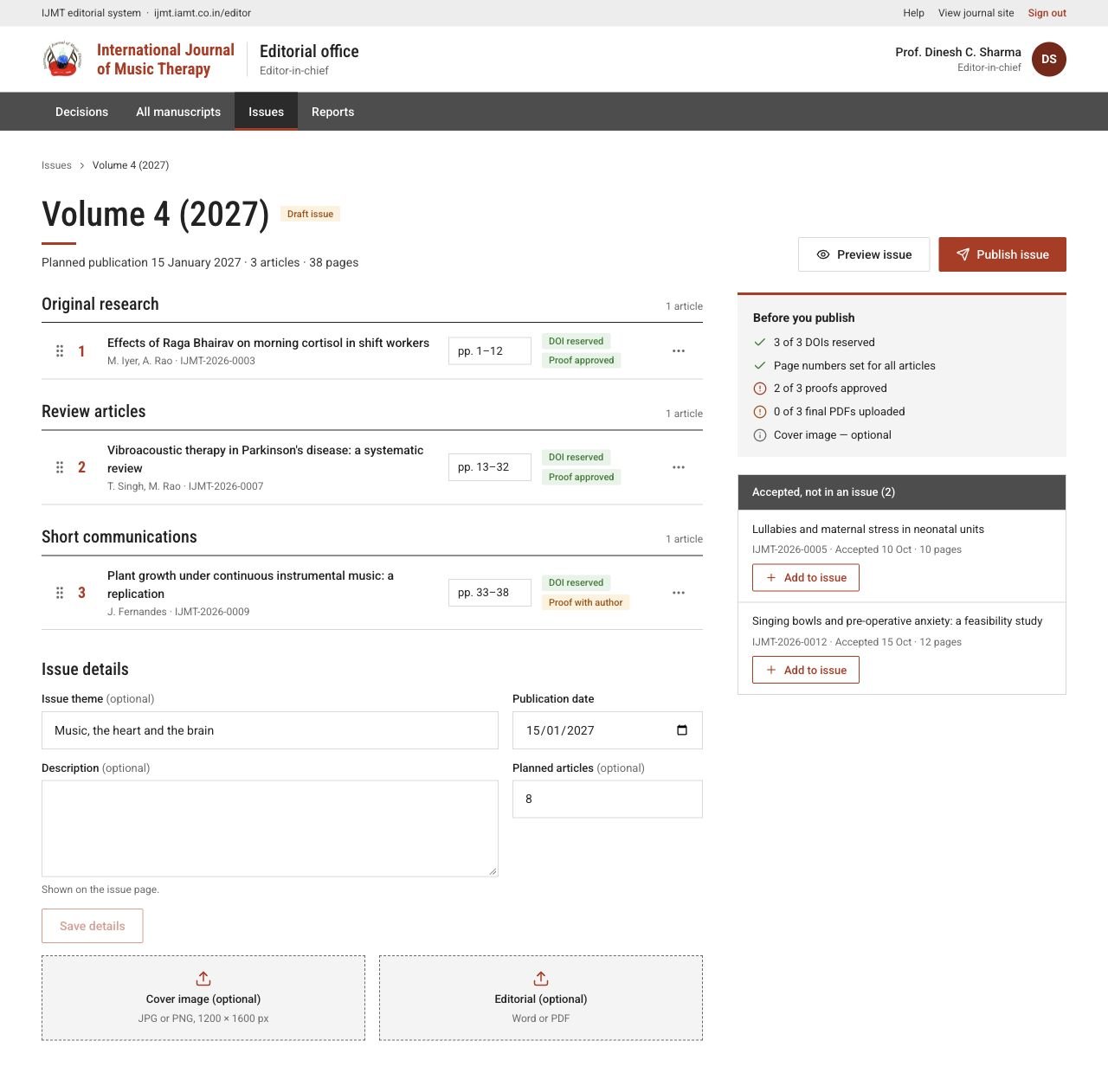
- 1Open Issues and choose New issue (volume, issue number and year), or Open builder on a draft issue.
- 2Set the publication date under Issue details. It is printed on every article.
- 3Under Accepted, not in an issue, choose Add to issue for each paper.
- 4Arrange papers with the drag handles, or Move up / Move down from the row’s menu.
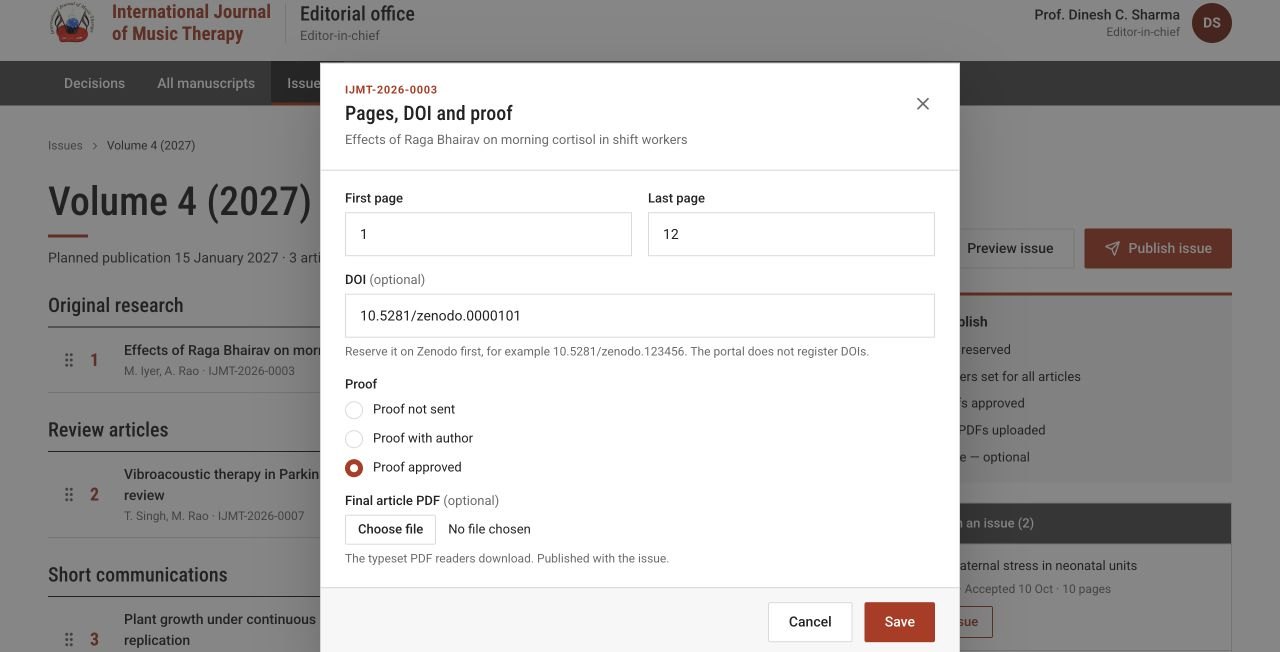
- 5For each paper choose Edit pages, DOI and proof: enter the first and last pages and the DOI you reserved with mVedra.
- 6Send proofs to authors (their Draft PDF shows the paper in the journal layout), then set Proof approved when they agree.
- 7Add the issue theme, description and optional cover image or editorial.
 View full page
Finalise each article
Until an article is finalised, every PDF of it — for authors, editors and reviewers — is marked DRAFT. When its pages, DOI and approved proof are set, choose Finalise on its row.
- The portal creates the final PDF in the journal layout, without the watermark, with the DOI, page numbers, dates and QR code.
- Download it from the row’s menu (Download final PDF) and send it to mVedra.
- Changing the pages, DOI or proof afterwards undoes finalisation automatically — finalise again. Undo finalise does the same on purpose.
- If an article was typeset elsewhere, upload its PDF under Upload a final PDF instead. That finalises it too.
 Enlarge
Publish an issue
When every article is finalised, use Download issue PDF preview to check the combined issue: cover, editorial and all articles in order. The same file is used for print.
Then choose Publish issue, read the checklist and confirm. The portal rebuilds the issue PDF from the final files, makes the issue and its articles public, and emails the authors and alert subscribers. Each article’s Download button opens its DOI.
Reports
Reports shows submissions, acceptance rate and time spent at each stage for a chosen year. Use Export CSV or the PDF export to share them. The acceptance rate is accepted papers divided by all papers with a final decision.