

On this page
Create an author account
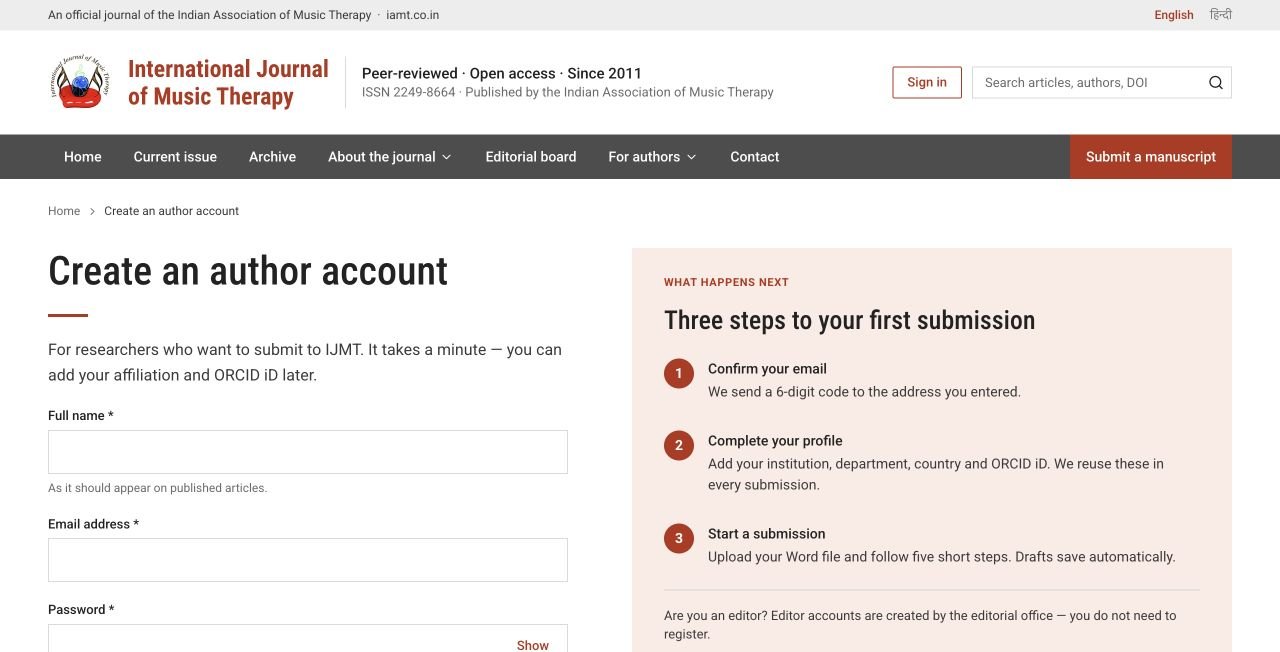
- 1Choose Sign in, then Create an author account. You can also go straight to /account/register.
- 2Enter your name as it should appear in publications, your email address and a password of at least 12 characters including a number.
- 3Read the Privacy policy and Publication terms, tick to agree, and choose Create account.
- 4We email you a 6-digit code. Type it on the verification screen. If it does not reach your inbox, check your Junk or Spam folder.
- 5Complete your profile — institution, country and ORCID iD are reused every time you submit.
ijmt.iamt.co.in/account/register
 Enlarge
Accept an editor invitation
Editors, the editor-in-chief and administrators join by invitation only.
- 1Open the invitation email from the editorial office and follow its link.
- 2Choose your password.
- 3Complete the invitation form and the confidentiality declaration.
Sign in and sign out
Everyone uses the same page, /account/sign-in. Your role decides which workspace opens.
- Tick Keep me signed in on this device only on your own computer or phone.
- On a shared computer, always choose Sign out at the top right when you finish.
- If you hold two roles (for example author and editor), use separate browser profiles, or sign out before switching.
Forgotten password
- 1On the sign-in page choose Forgot password?
- 2Enter your email address and request a recovery code.
- 3Type the code from the email, then choose a new password.
Your profile and settings
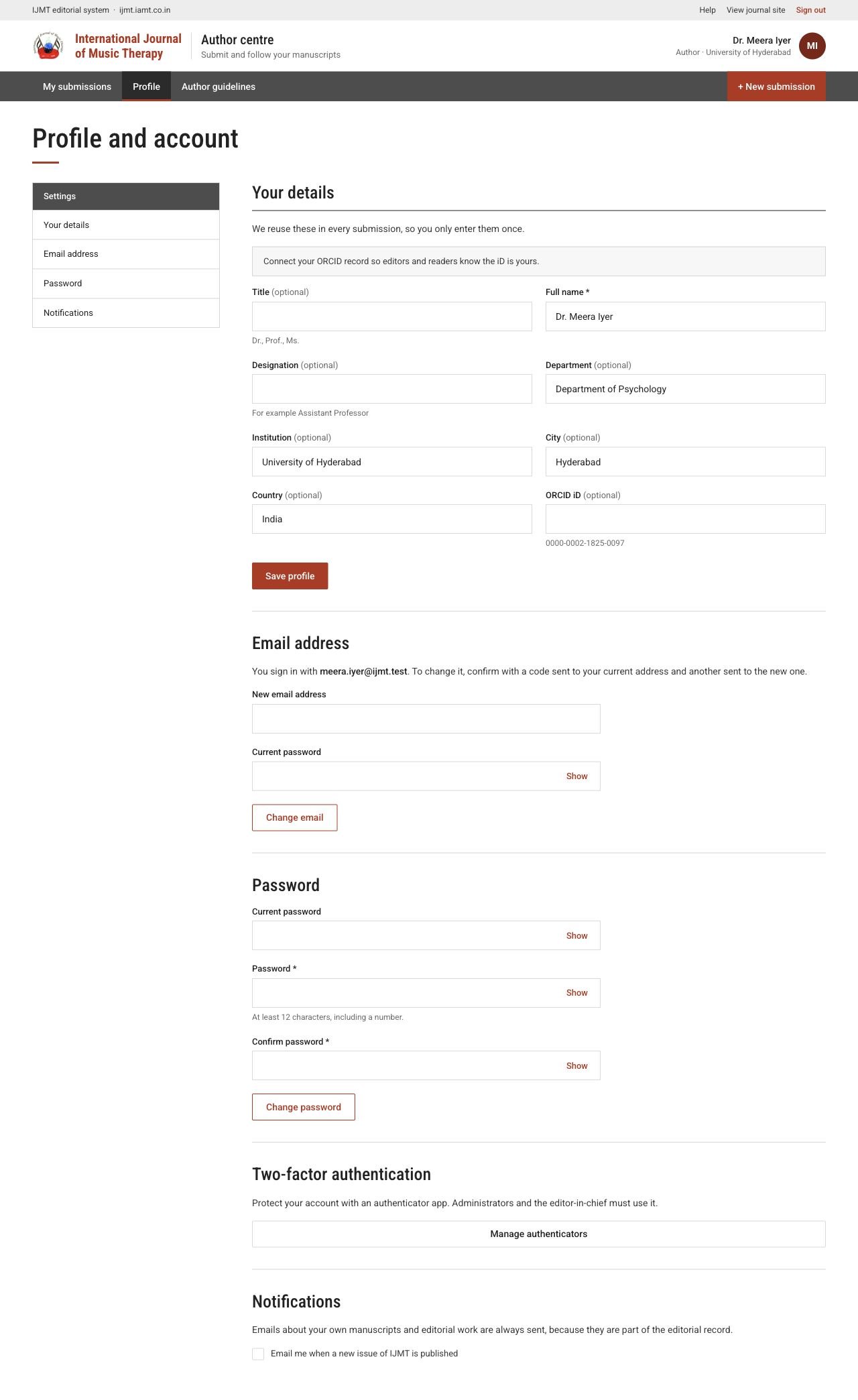
Authors open Profile in the author centre. Editors and administrators choose their name at the top right of the editorial office.
| I want to… | What to do |
|---|---|
| Update my details | Edit your name, title, institution, department, city, country or ORCID iD and choose Save profile. |
| Verify my ORCID iD | If Verify with ORCID is shown, follow it to sign in at ORCID and return. Typing your iD alone does not verify it. |
| Change my email | Enter the new address and your current password. Confirm with the two codes sent to your old and new addresses. |
| Change my password | Enter your current password, then the new password twice. |
| Stop or start new-issue emails | Use the notification switch. Emails about your own manuscripts always continue. |
| Manage my authenticator | Choose Manage authenticators. |
ijmt.iamt.co.in/author/profile
 View full page
Two-step verification
Two-step verification is optional. Anyone can add an authenticator app such as Google Authenticator, Microsoft Authenticator or 1Password from their profile; once added, every sign-in asks for a code from it.
- 1Choose Set up an authenticator.
- 2Scan the QR code with your authenticator app, or type the setup key it shows.
- 3Enter the 6-digit code from the app and choose Verify and continue.
- 4We strongly recommend Add a backup authenticator on a second device, in case you lose your phone.
- 5Each time you sign in, enter the current code from your app.